PDF · Excel · CSV
Convert a bank statement PDF to Excel
Drop a bank statement PDF and get its rows and columns as an Excel (.xlsx) or CSV file: dates, descriptions, debits, credits and running balance, with amounts as real numbers you can add up. Your statement is read inside your browser and never uploaded.
● Runs in your browser. Your files are never uploaded.- Output: .xlsx, .csv, .md
- Scans: OCR in 100+ languages
- Free: 15 files a day
.pdf.jpg.png.docx.pptx.xlsx.xls.csv.txtNo file to hand? (a made-up 6-page PDF).
What you get
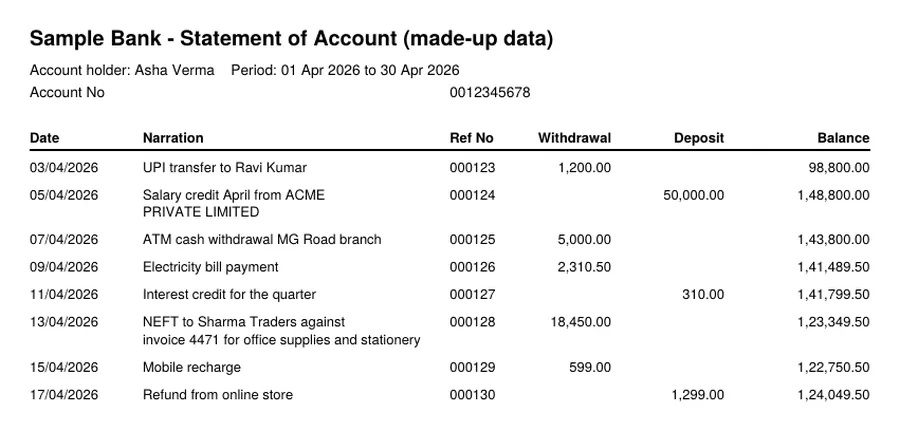
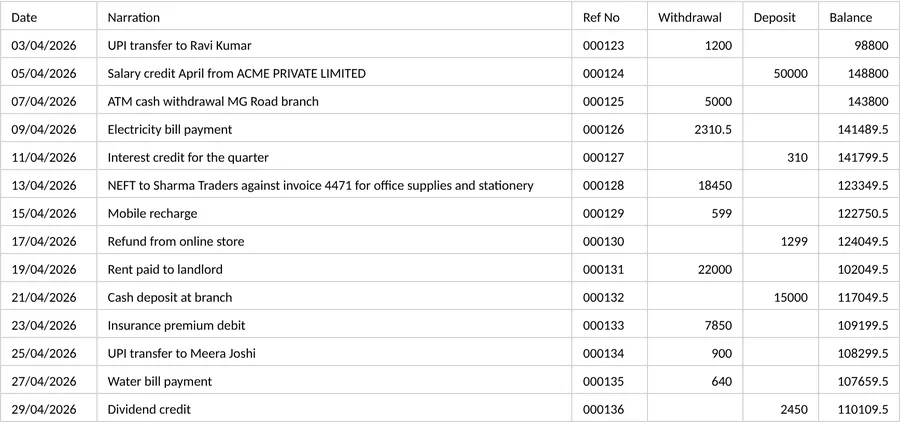
Wrapped narration lines joined into one row; numbers stored as numbers. Real result for a sample file with made-up data; download the sample and try it above.
Good for
- Bookkeeping and accountant hand-overs: a year of statements in one spreadsheet
- Checking expenses, filtering by description, or summing a column in Excel or Google Sheets
- Tax and loan paperwork where you need the transactions, not the PDF
- A statement you would rather not upload to a website: nothing leaves your device
Worth knowing
- Works on statements that have selectable text. A scanned or photographed statement is read with OCR as plain lines of text, not as columns.
- Layouts differ from bank to bank. Check the result against the PDF: opening balance, closing balance, and the total of the debit and credit columns.
- A description that wraps onto a second line is joined to the row above. If your bank shows notes under a transaction, look at those rows.
- Dates are kept exactly as printed (text), so Excel does not change them to another date format. Amount columns become numbers; reference and account numbers stay text so leading zeros are kept.
- Amounts printed with Dr or Cr after them become signed numbers: Dr is negative, Cr is positive. A rupee sign is dropped from the number.
- Account details or a period line printed between pages are kept on a separate sheet, not in the table. Pages turned sideways are added to the Markdown as plain text and are not in the spreadsheet; the note under the result says so.
- A closing line that carries an amount (for example a total or a closing balance printed under the table) looks like a transaction and stays in the table: delete that row if you do not want it.
- Password-protected statements need to be unlocked first.
How it works
- Drop your file into the box above, or tap to choose it. Several files at once work too.
- The file is converted inside your browser. Scanned pages and images are read with OCR in the languages you pick.
- Preview the Markdown, copy it, or download it as a .md file.
Questions
Is my bank statement uploaded?
No. The PDF is read inside your browser tab. The file, its text and the Excel file you download never reach our servers.
Which banks does it work with?
It does not look for a bank name. It finds the columns from where the text sits on the page, so it works for statements laid out as a table with selectable text. Layouts vary, so check each new bank format once against the PDF.
Why are some amounts not numbers in Excel?
Only columns where most cells look like amounts (such as 1,200.00) are turned into numbers. A column mixing amounts with other text stays text so nothing is guessed.
What about statements with many pages?
Every page is read in turn. A header row that repeats on each page is kept once, and page numbers and similar repeated lines are left out.
Does it work for scanned statements?
Scanned pages are read with OCR as lines of text. That keeps the words but not the columns, so for those you will need to arrange the columns yourself or ask the bank for a text-based PDF.